Changing Audio Track and Subtitle Settings
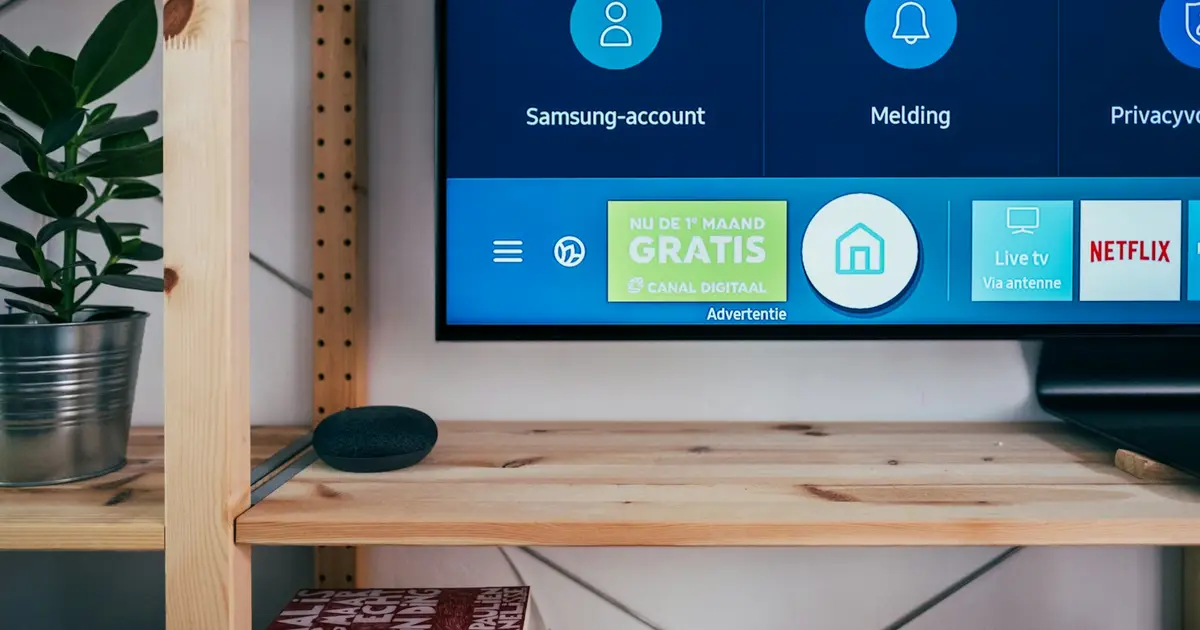
Audio tracks and subtitles
Watching a film in its original language, or following a foreign channel with subtitles, takes a few clicks — once you know where the menu is.
Switching the audio track
Most films and series carry more than one audio track. While the stream is playing:
- Press OK or the menu button on the remote.
- Look for "Audio", "Sound" or a speaker icon.
- Pick one of the listed languages.
Languages are usually abbreviated: "eng", "ger", "tur". Some streams also offer "Original".
If only one track appears, that stream has no alternative. Try the same event on another channel, or the archive version.
Turning subtitles on
The same menu holds "Subtitle":
- Embedded subtitles: carried in the stream, selectable from the list.
- Off: if you do not want any.
An empty list means the stream carries no subtitle data. Live channels rarely do; archive films more often.
When audio and picture drift apart
A gap between lip movement and sound usually comes from an external sound system.
- Set "Audio delay" to 0 in the player settings.
- If the soundbar is connected over Bluetooth, that introduces delay by design. Use optical or HDMI where possible.
- If the TV has a game mode or low-latency option, switch it on.
If it happens on one channel only, it comes from that source — try a backup version.
Subtitles too small to read
Most players let you set size, colour and background. Increasing the size under Settings > Subtitles makes a clear difference at normal viewing distance.
Accented characters showing as symbols
If accented letters appear as meaningless marks, the character encoding is being read wrongly. Set the subtitle encoding to UTF-8 in the player — that usually fixes it.
Cannot find the menu
These settings live in different places depending on the player. See the setup guides for your device, or reach us from the support page.
Explore more
Have a question about this post?
Get quick help about setup, packages, or device compatibility.