Setting Up a MAG Device (Portal Method)
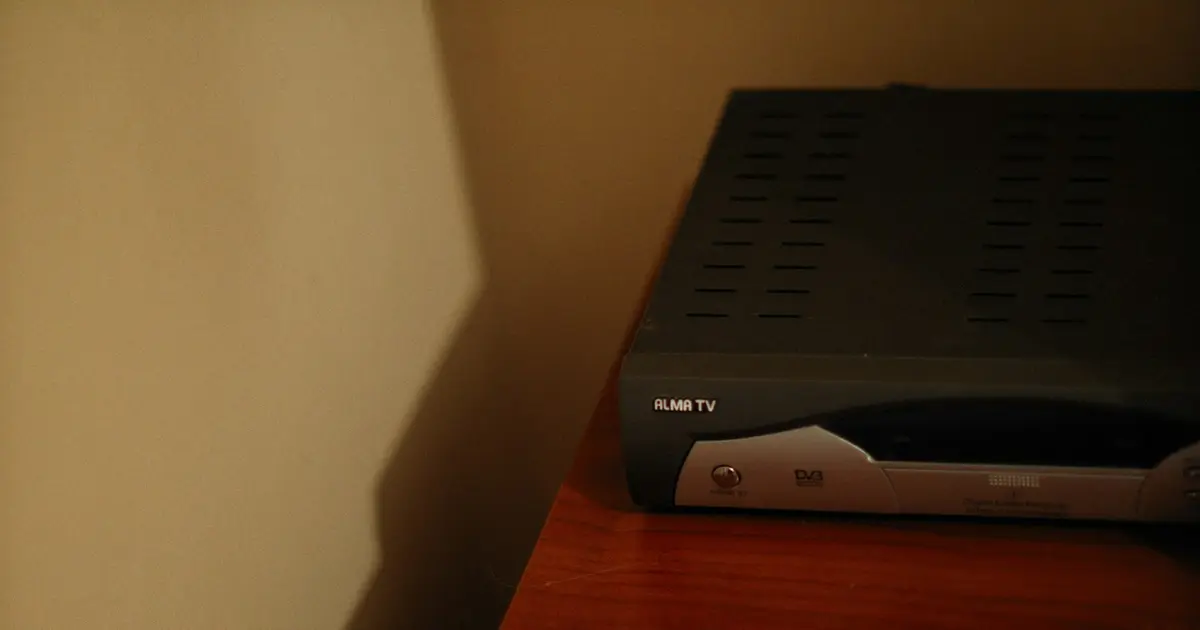
The Dedicated Box
MAG boxes, made by Infomir, are built for one purpose: receiving IPTV. They do not run apps, they do not browse the web, and they do not need configuring beyond a single portal address. For people who want a television experience rather than a computer experience, that narrowness is the appeal.
They also work differently from every other device, which is why a separate guide is warranted.
How MAG devices differ
Most players use a playlist file: you paste a URL containing your username and password, and the device downloads the channel list. MAG boxes use a portal, and authentication is tied to the box's MAC address rather than to credentials you type in.
Two practical consequences follow:
- Your subscription is bound to that specific box. You cannot move it to another device by entering the same details, because there are no details to enter. Tell support if you change hardware.
- You must give us your MAC address before anything will work. Registration happens on our side, not yours.
Finding your MAC address
The MAC address is printed on a sticker on the underside of the box, labelled "MAC" and formatted as six pairs of characters separated by colons, for example 00:1A:79:XX:XX:XX. Portal URLs, MAC-based activation and the errors that come up during setup are covered in more depth in MAG Box Portal URL and MAC Address Explained.
If the sticker is worn or unreadable, you can find it in the interface under System Settings, then System Information. Read it carefully: zero and the letter O are easy to confuse, and a single wrong character means registration will silently fail.
Setup, step by step
- Send us your MAC address and wait for confirmation that the box is registered. Nothing below will work before this is done.
- Power on the box and wait for the built-in portal to load.
- Open the settings menu. From the main portal, navigate to Settings, then Servers, then Portals.
- Enter the portal address we provided in the Portal 1 URL field. Leave Portal 2 empty unless instructed otherwise. Give it a name if the field is offered; this is only a label.
- Save and reboot. Use the menu's restart option rather than pulling the power. The box needs a clean restart to load the portal.
- Wait for the channel list to populate. The first load takes longer than subsequent ones, occasionally a minute or two.
Supported models
The procedure above applies to the common models including the MAG 322, 324, 420 and 524. Menu wording varies slightly between firmware versions, but the path is consistently Settings, Servers, Portals.
Older models may present the portal setting under a differently named menu. If you cannot find it, the System Settings screen will show your firmware version, which support can use to give you the exact path.
When it does not work
Channel list stays empty after reboot. Almost always means the MAC address was not registered, or was registered with a typo. Confirm the exact address with support before changing anything else.
Portal loads but shows an error. Check the portal URL character by character. A missing trailing slash or a transposed character is the usual cause.
It worked, then stopped. Check whether your subscription is still active. If it is, the portal address may have changed; support can confirm the current one.
Box will not boot past the logo. This is a firmware problem rather than a portal one. Contact support before attempting a firmware update, as an interrupted update can leave the box unusable.
Is a MAG box right for you?
Yes, if you want something that behaves like a cable box, you are setting it up for someone who will not want to troubleshoot, or you value a device that does one job reliably.
No, if you want to use multiple applications, expect to move your subscription between devices frequently, or want the flexibility of a general-purpose streaming box. In those cases a standard Android device will suit you better.
If an Android device suits you better, the setup is username and password rather than a portal address: Android setup guide
Device-by-device instructions: setup guides
Portal still not loading? Write to us from the support page and we will check the MAC authorisation.
Source: Set-top box – Wikipedia
Explore more
Have a question about this post?
Get quick help about setup, packages, or device compatibility.
Related Posts
- MAG Box Portal URL and MAC Address ExplainedWhat a portal address actually does, why activation is tied to your MAC address, and the errors that come up along the way.
- IPTV on LG Smart TVInstalling IPTV on an LG webOS Smart TV: Content Store apps, the region setting, and MAC address activation.
- How to Watch IPTV on Windows or MacMedia player or desktop app? The differences, and why stuttering on a PC usually is not the connection.